
The short answer: the fastest way to get more Google reviews is to ask every customer, at the moment they're happiest, with a single tap-to-review link, and then follow up once. Get your review link from your Google Business Profile, send it by text within a few hours of finishing each job, send one reminder a couple of days later, and reply to every review you get. Then automate it so the request goes out on its own and nobody has to remember. Don't offer anything in exchange for a review, and don't only ask the customers you expect to be happy. Both break Google's rules.
Most small businesses don't have a review problem. They have an asking problem. The work is good and customers are happy, but nobody sends the link, or it gets sent a week later when the customer has moved on. This guide covers how to fix that by hand first, then how to automate it so it runs for every job.
Why Google reviews matter for a local business
Your reviews show up next to your Business Profile in Google Search and Maps, which is often the first thing a new customer sees before they visit your website. Google's own help page puts it plainly: reviews "can help your business stand out and give potential customers helpful info" (Google Business Profile Help).
Reviews also do a second job: they're a steady stream of fresh, real words about your work, in your customers' language. That's useful for your own marketing. You learn what people actually value, and you can use those phrases on your service pages.
What Google allows (and what gets reviews removed)
Before you automate anything, know the rules. Automating a bad practice just breaks the rules faster. Google's Maps user-generated content policy says businesses must not:
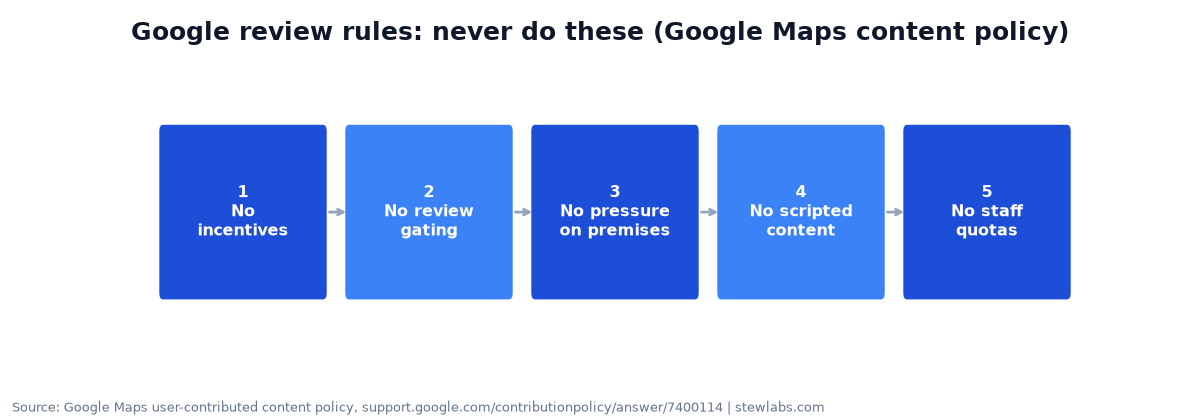
Source: Google Maps user-contributed content policy.
- Offer incentives like payment, discounts or free goods and services in exchange for a review, or for changing or removing a negative one.
- Discourage or prohibit negative reviews, or selectively ask only happy customers. This is often called "review gating," and Google lists it as rating manipulation.
- Pressure customers to leave a review while on your premises, or ask them to include specific content, such as naming a staff member.
- Push staff to hit a review quota. The policy specifically calls out businesses that ask staff to solicit a certain number of reviews.
What Google does allow: asking customers to share a genuine experience, "without offering incentives to do so or attempting to influence the rating or the contents of the review."
In practice, that means:
- Ask every customer, not just the ones you think liked you.
- Don't route unhappy customers to a private form and happy ones to Google. Plenty of review tools advertise exactly this filter. Leave it off.
- No "leave a review for 10% off."
- Ask for an honest review. Don't ask for five stars.
Step 1: Get your Google review link
Google lets you create a link or QR code that drops the customer straight onto the review box for your business (Google Business Profile Help). You'll find it in your Business Profile, under the option to ask for reviews.
Copy that link and save it somewhere your whole team (and your tools) can reach it. You'll use it in every message.
Two practical notes:
- Customers have to be signed in to a Google Account to leave a review. Google notes they can create one with a non-Gmail address. A small number of customers will drop off here, and that's normal.
- Make a QR code too. Put it on invoices, leave-behind cards and the truck. It costs nothing and catches people who don't open texts.
Step 2: Ask at the right moment
Timing matters more than wording. The best moment to ask is right after the result is visible: the leak is fixed, the lawn is done, the car is ready. A good rule is to send the request the same day the job is marked complete, ideally within a few hours.
Here are triggers that work for different business types:
| Business type | Best trigger for the request |
|---|---|
| Home services (plumber, electrician, HVAC, roofer) | Job marked complete in your scheduling or invoicing tool |
| Appointment businesses (salon, clinic, studio) | A few hours after the appointment ends |
| Retail or restaurants | QR code at checkout, plus an email receipt with the link |
| Online or SaaS | After a clear success moment (first result, first month renewed) |
If you can only automate one thing, automate this trigger. Everything else is copywriting.
Step 3: Write a short, honest request
Text messages usually work better than email for local services, because people read them right away. Keep it short and personal, and always include the link.
Text template:
Hi [first name], it's [your name] from [business]. Thanks for having us out today. If you have a minute, would you share how it went on Google? It really helps a small business like ours: [review link]
Email template:
Subject: How did we do, [first name]?
Thanks again for choosing [business] for [job]. We'd love an honest review on Google. It takes about a minute and helps neighbors find a business they can trust.
[Leave a review button → review link]
If anything wasn't right, just reply to this email and I'll fix it.
That last line is fine and doesn't count as gating, because everyone still gets the review link. You're giving unhappy customers a direct line to you as well as the link, not instead of it.
Things to avoid in your message:
- "Please leave us a 5-star review." Ask for an honest one.
- Any mention of a discount, gift or entry into a draw.
- Telling them what to write, or asking them to mention a staff member by name.
Step 4: Follow up once, then stop
One reminder catches people who meant to do it and forgot. More than one starts to feel like pressure.
A simple sequence:
- Same day: the text above.
- Two to three days later, only if they haven't clicked: "Just a quick reminder in case it got buried. Here's the link if you'd like to share how it went: [link]."
- Stop. No third message.
Most tools can track whether someone clicked the link, but they can't reliably tell whether that person actually posted a review. So base the follow-up on clicks, and accept that some people who clicked won't get a reminder.
Step 5: Reply to every review
Replying shows future customers that someone is listening. Google's guidance on replies is worth following (Google Business Profile Help):
- Keep it short, polite and specific. Skip the identical "Thanks for your review!" on every one.
- Don't use replies to promote deals. The reviewer is already a customer.
- For negative reviews, don't share private details or argue. Acknowledge what went wrong, apologize where it's fair, and invite them to contact you directly to sort it out.
This is a great place for AI to help, as long as a person approves the reply before it goes out. Have AI draft a reply that mentions the specific job, then read it, tweak it and post it.
Step 6: Automate the whole thing
Once the manual version works, automating it is mostly plumbing. Here's the flow:
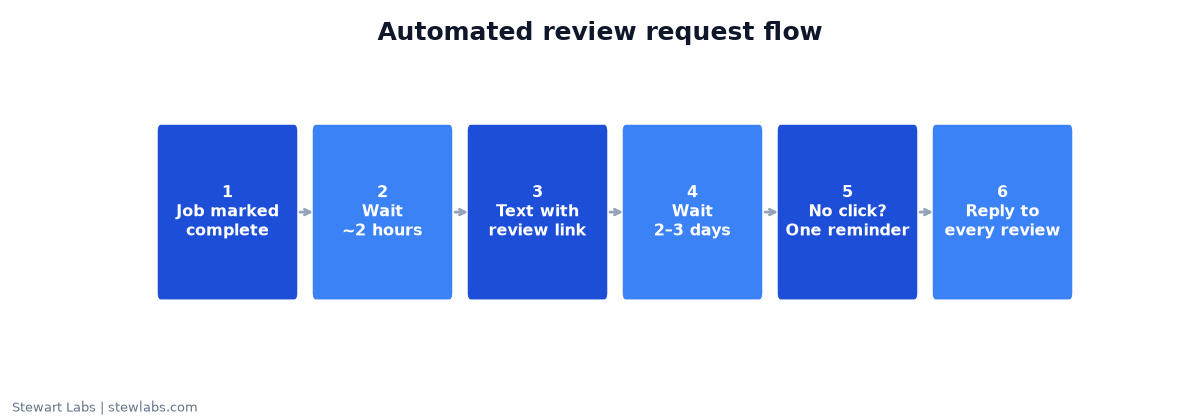
The full automated review request flow.
- Trigger: a job is marked complete in your scheduling, invoicing or CRM tool.
- Wait: a short delay, for example two hours, so the message doesn't arrive while the crew is still packing up.
- Send: the review request text, with the customer's first name and your review link.
- Wait: two or three days.
- Check: did they click? If not, send the one reminder.
- Alert: when a new review lands, notify the owner and draft a reply for approval.
- Report: a weekly count of requests sent, link clicks and new reviews.
Tools that can do this. Many field-service and CRM platforms (Jobber, Housecall Pro, GoHighLevel and others) have review requests built in. Dedicated review tools like Birdeye, Podium and NiceJob focus on exactly this job. If your scheduling tool doesn't have it, Zapier or Make can connect a "job completed" event to an SMS tool. Pricing and features change often, so check current plans before you choose. And whichever tool you use, switch off any "send unhappy customers to a private form" feature, because that's the review gating Google prohibits.
Texting rules. In the US, business texts sent through software platforms run through carrier registration (A2P 10DLC). Most review and CRM tools handle this for you, but your messages can be filtered if the number isn't registered (Twilio's A2P 10DLC docs). Only text customers who gave you their number for service, and honor "STOP" right away.
What we've learned running automated follow-up
We run AI automation on our own businesses and publish what works, with real numbers. We haven't published a review-request case study yet. But we have run automated follow-up, and one lesson carries straight over to reviews.
On a B2B job board we run, an AI voice agent called every new lead automatically. Of 73 leads, it reached 18 live people. The automation worked perfectly. The problem was the people it was following up with: most weren't ready to buy. (Read the full Facebook lead ads case study.)
Review requests are the opposite situation, and that's why they're such a good thing to automate. The person on the other end just hired you and got a result. Automation is at its best when the intent is already there and the only thing missing is a timely nudge.
The other lesson from that test: in the same campaign, three people asked for a callback at a specific time, and the automated retries kept landing at the wrong time of day. Fixed schedules are blunt. For reviews, that means sending based on when the job finished, not at a set time every evening.
How to measure it
Track four numbers every week:
- Requests sent: this should equal jobs completed. If it doesn't, the trigger is broken.
- Link clicks: your tool should show this.
- New Google reviews: count them in your Business Profile.
- Replies posted: aim for every review.
If requests sent is lower than jobs completed, fix the trigger first. If clicks are low, test the wording and the timing. If clicks are fine but reviews are low, customers may be getting stuck at sign-in, so a QR code in person can help.
FAQ
How do I get my Google review link?
Open your Google Business Profile and use the option to ask for reviews. Google will give you a shareable link and a QR code (Google Business Profile Help).
Can I offer a discount for a Google review?
No. Google prohibits offering incentives such as payment, discounts or free goods and services in exchange for a review (Google Maps content policy). Reviews posted because of an incentive can be removed.
Is it OK to only ask happy customers for reviews?
No. Google's policy lists "selectively solicit positive reviews from customers" as something merchants must not do. Ask everyone.
How many times should I ask?
Once, plus one reminder a few days later if they haven't clicked. Then stop.
Should I use AI to reply to reviews?
AI is great for drafting replies that mention the specific job, but have a person read and approve each one before it's posted. Replies are public and permanent.
What's the best software to automate Google review requests?
Start with whatever already holds your job data. If your scheduling or CRM tool has review requests built in, use that. If it doesn't, a dedicated review tool or a Zapier connection to an SMS tool will do the job. The tool matters less than the trigger and the timing.